Accessibility Checker
by Arctic Leaf, for BigCommerce. Install and user guide.
Accessibility Checker checks your BigCommerce storefront for accessibility issues against WCAG 2.2. It tells you what to fix in plain words, sorted by who can fix it: you in the control panel, your theme developer, or the makers of your other apps.
This guide covers installing the app, running checks, reading the results, and managing your plan.
Before you start
You will need:
- A BigCommerce store, and a control panel user who is allowed to install apps.
- A storefront that visitors can see. If your store hasn't launched yet, you'll also need its storefront preview code (see Stores not launched yet).
- For the Pro plan only: a card for Stripe. The Free plan needs no card.
The checker reads your public storefront the way a visitor's browser does. It never changes your store, adds nothing to your storefront, and doesn't read your orders, customers or catalog.
What automated checks can and can't do. Automated checks find many issues, but not all. A clean result doesn't mean your store is fully accessible or meets any law. A manual review with a keyboard and a screen reader is still needed. The app says this on every result.
Install the app
- In your control panel, go to Apps › Marketplace and find Accessibility Checker by Arctic Leaf, or open its page in the BigCommerce App Marketplace.
- Click Install.
- Review the permissions the app asks for (below).
- Click Confirm.
The app opens on Check accessibility, on the Free plan. Later, open it from Apps › My Apps. Every user of your store who has access to the app can use it.
Permissions the app asks for, and why
| Permission | Why |
|---|---|
| Sites & Routes: read-only | To find your storefront's web address, and each storefront's address if you have more than one. |
| Content: read-only | To read the names of Page Builder widgets, for issues the checker finds in a widget. |
That's all. Both are read-only, so the app can't change anything in your store. It doesn't ask for access to orders, customers, products or payments.
Find your way around
The app has five tabs:
- Check accessibility: run a full scan or check a single page, and see your recent scans.
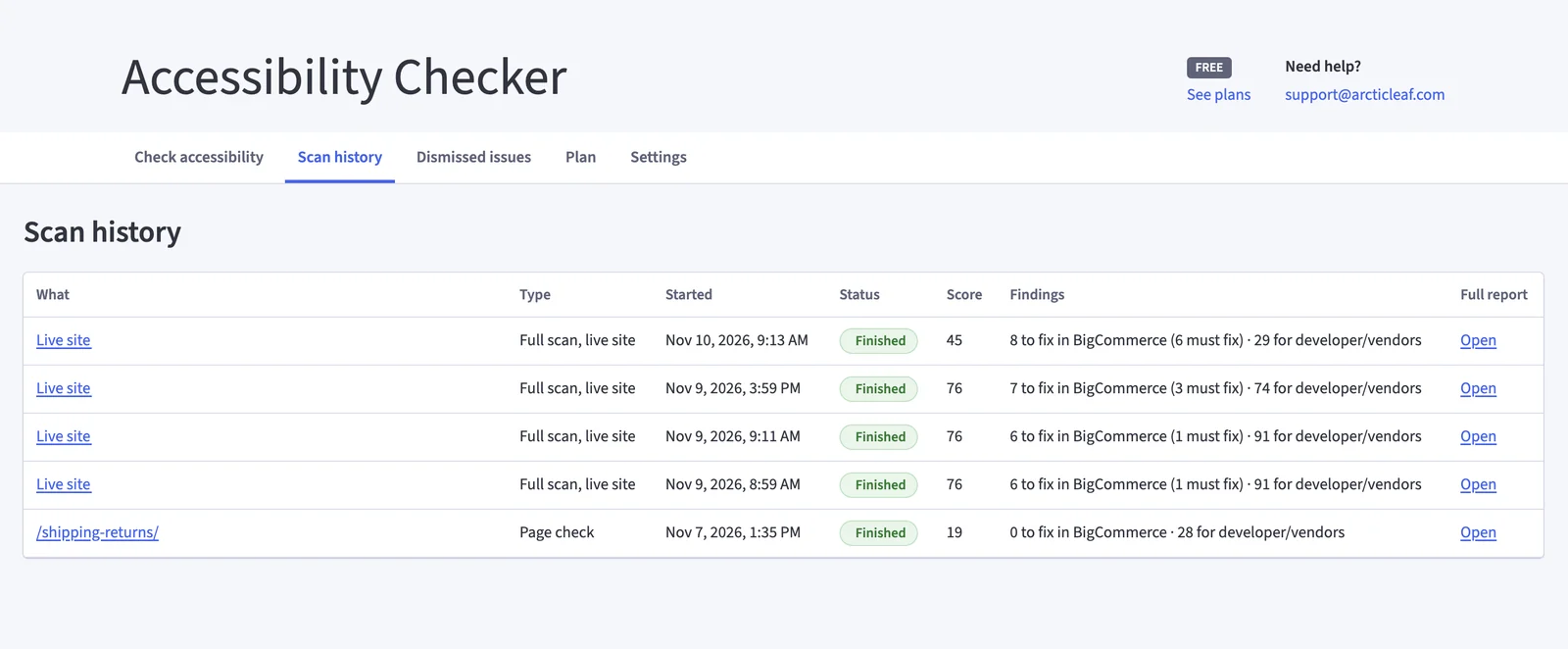
- Scan history: every scan and page check, with its score, findings and full report.
- Dismissed issues: issues you've marked as not an issue, and a way to restore them.
- Plan: your plan, this month's use, the free trial, and billing.
- Settings: your WCAG target, the pages a full scan should include or skip, and the storefront preview code.
The header shows your plan, a link to your plan or billing, and Need help? with our email address and a link to this guide.
Check a single page
A page check looks at one page. Use it after you edit a product, category, brand, web page or blog post. It takes about a minute.
- Open Check accessibility.
- Under Check a single page, paste a link from your storefront in Page link, or a path such as /shipping-returns/. Or type in Or find a page to search your products, categories, brands, web pages and blog posts, and pick one.
- Click Check this page.
The result opens when it's ready. To check the same page again after you fix something, click Check again on the result. The line above the button shows how many page checks you've used this month.
Run a full scan
A full scan checks your whole storefront. It opens a sample of each type of page (products, categories, web pages, blog posts and so on) in a browser on desktop and mobile. It also checks the text and images of every page it finds. Pages of one type share the same theme code, so a sample finds the theme's issues without opening every page. A full scan takes 10 to 20 minutes.
- Open Check accessibility.
- Under Run a full scan on the live site, click Run full scan.
You can leave the app while it runs. The scan is listed under Recent scans and in Scan history, with its progress. If every scanner is busy with other stores, it waits its turn and starts on its own. To stop it, click Stop scan (or Cancel scan if it hasn't started). A scan that is stopped doesn't count toward your allowance.
More than one storefront? If your store has several storefronts (channels), pick one in Storefront to check first. Scans of every storefront share your store's one monthly allowance.
To change which pages a full scan includes, see Settings.
Read the results
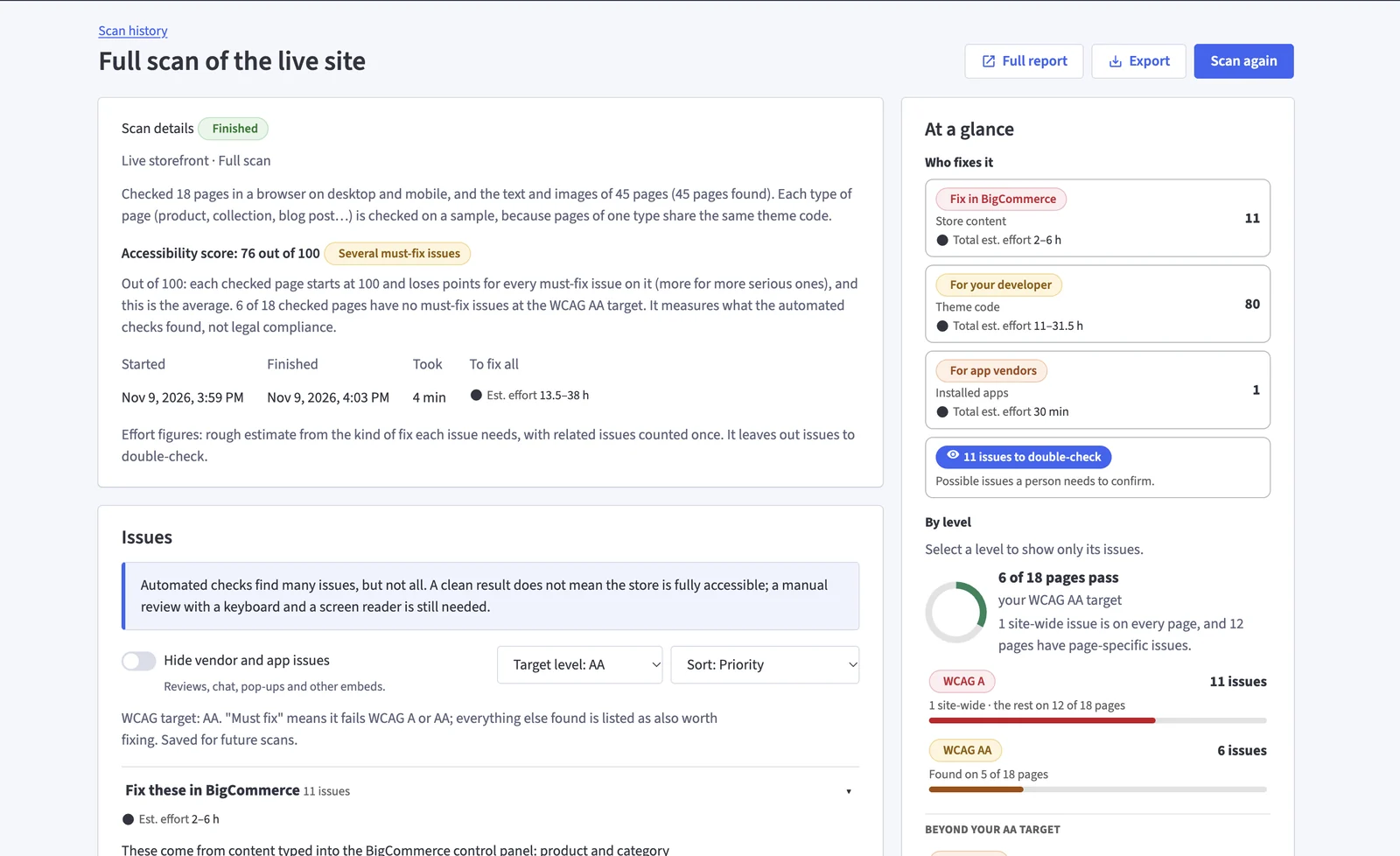
Click a scan in Recent scans or Scan history to open its result. The top of the page has:
- Scan details: how many pages were checked, when it ran, and how long it took.
- Accessibility score out of 100. Each checked page starts at 100 and loses points for every must-fix issue on it, and the score is the average. It measures what the automated checks found, not legal compliance.
- To fix all: a rough estimate of the effort to fix everything found.
- At a glance: how many issues each group has (Who fixes it) and how many issues there are at each WCAG level (By level). Click a row to jump to that group or show only that level.
Who fixes each issue
Issues are sorted into three groups, by who can fix them:
- Fix these in BigCommerce (marked Fix in BigCommerce): issues in content typed into the control panel. That includes product and category descriptions, web pages, blog posts, image descriptions (alt text), and banners and widgets placed with Page Builder. Anyone who edits the store can fix these.
- For your theme developer (marked For your developer): issues in the theme's code. Editing content won't fix them. Pass them to whoever maintains your theme, with the full report.
- For app vendors: issues from other apps and embeds on your storefront, such as reviews, chat and pop-ups, listed by app. Check each app's settings first, then send the rest to the app's support team. Vendor report gives you a message to send them. To hide this group, turn on Hide vendor and app issues.
Inside each group, issues are listed as Must fix, then Also worth fixing, then To double-check.
Issues to double-check are possible issues a person needs to confirm. The checker can't decide these on its own: things like video captions, menus that only appear once opened, or text that wasn't visible during the scan. Many turn out to be fine. Click issues to double-check in At a glance to show only these.
What each issue tells you
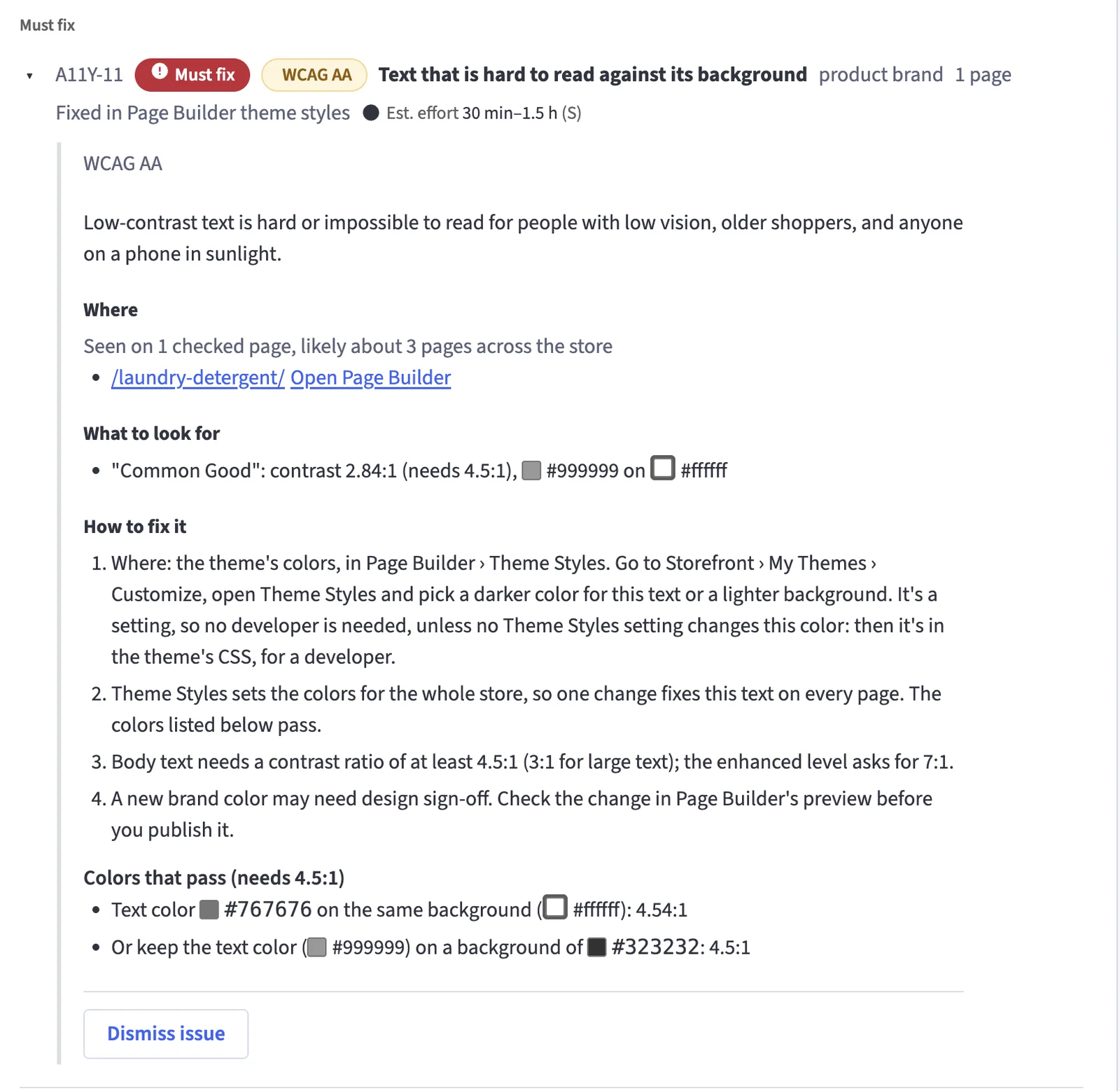
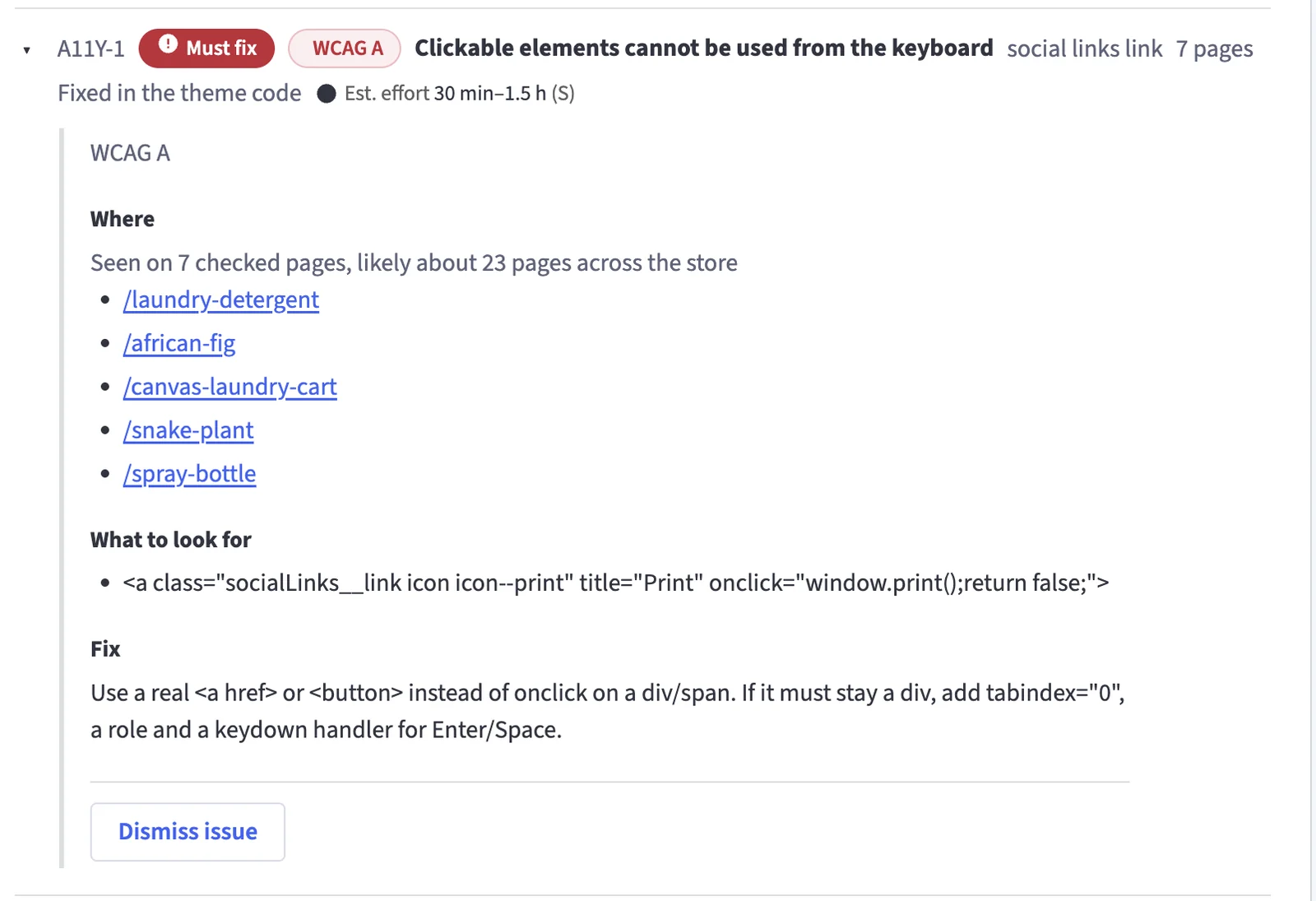
Click an issue to open it. Each one shows:
- Its WCAG level and whether it's a must fix.
- Where it's fixed, such as Fixed in Page Builder theme styles or Fixed in the theme code, and an effort estimate.
- Where: the pages it was seen on, and roughly how many pages across the store it likely affects.
- What to look for: the text, image or element with the problem. For color contrast, the colors and their contrast ratio.
- How to fix it (or Fix, for developer items): the steps. For color contrast, colors that would pass.
Control-panel links. Next to a page, an issue in your content links to where you fix it: Find in Products, Open Categories, Open Brands, Open Web Pages, Open Blog or Open Page Builder. Theme colors are set in Page Builder's Theme Styles, so those issues link to Page Builder. When the app can't tell what kind of page it is, it shows no link rather than guess.
WCAG target level and must fix
Every WCAG level is always reported. Your target decides what counts as Must fix:
- WCAG AA (recommended): issues that fail WCAG A or AA are must fix.
- WCAG A: only issues that fail WCAG A are must fix.
- WCAG AAA: issues that fail any level are must fix.
Everything else found is listed as Also worth fixing, including best-practice and screen-reader notes. To change the target, use Target level above the issues, or Settings. The change applies to results in the app straight away and is saved for future scans. Use Sort issues to order issues by priority, effort, pages affected, WCAG level, or new since the last scan.
Effort estimates
Each issue, each group and the whole scan show an estimated effort, such as Est. effort 30 min–1.5 h. It's a rough estimate from the kind of fix each issue needs, with related issues counted once. It leaves out issues to double-check. Use it to plan, not as a quote.
Catalyst storefronts
If a storefront is built with Catalyst (headless), the app lists its issues by check, with the pages each one is on. It doesn't say who fixes them or link to the control panel there, because its fix guidance is written for Stencil themes.
Dismiss an issue
If an issue doesn't apply to your store, you can dismiss it.
- Open the issue and click Dismiss issue.
- Under Why isn't this an issue?, write a short reason.
- Click Dismiss.
The issue is hidden from results and left out of new scans and checks. The full report still lists it, with your reason. To see your dismissed issues, or to have one checked again, open Dismissed issues and click Restore.
Compare scans
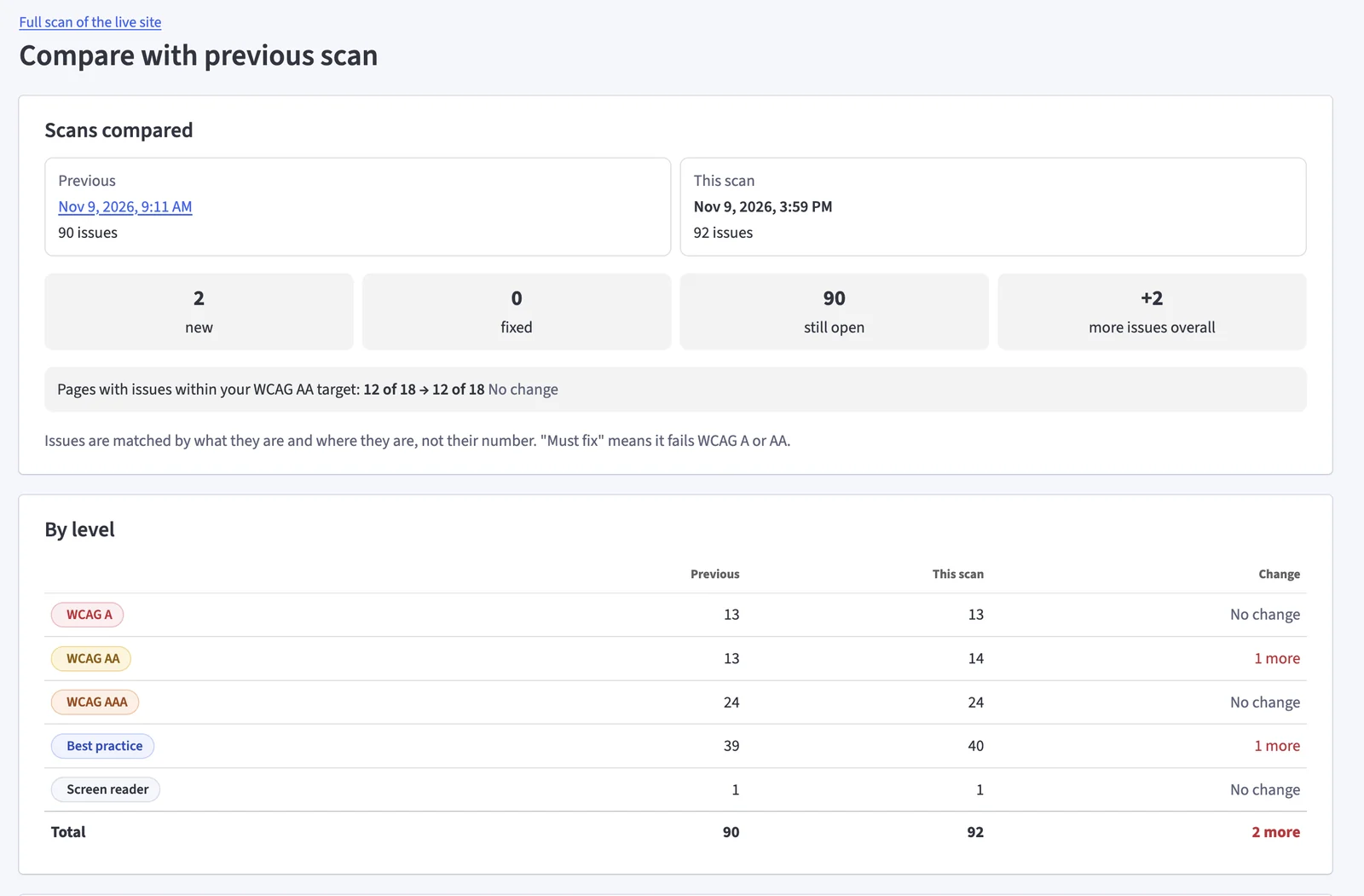
Once you have two finished scans of the same storefront (or two checks of the same page), the result shows Since last scan: how many issues are new and how many were fixed. Click Compare with previous scan to see:
- The number of new, fixed and still open issues.
- The change at each WCAG level and in each group.
- New since last scan and Fixed since last scan, issue by issue.
Issues are matched by what they are and where they are, not by their number.
Full report and exports
At the top of a finished result:
- Full report opens the whole report in a new tab, with each element and its markup. It's the one to send to your developer. Scan history also links to each scan's full report.
- Export downloads All issues (CSV) or Content issues by page (CSV), for a spreadsheet.
- On the Pro plan, Export also has the PDF report: a summary you can share or file.
The full report and CSVs keep the WCAG target the scan ran with, even if you change your target later.
Settings
Results
- WCAG target: WCAG A, WCAG AA (recommended) or WCAG AAA. See WCAG target level and must fix.
- Show best-practice and screen-reader notes: useful extras beyond WCAG. When off, they are left out of the results in the app. The full report still has them.
Full scans
These change which pages a full scan checks. They don't affect single page checks.
- Pages to always include: one per line, such as /shipping-returns/ or a link to the page. Up to 25.
- Pages to skip: one per line. /old-sale/ skips that page. * matches part of one level, as in /old-*. ** matches everything below, as in /blog/**. Up to 50. A page in both lists is skipped.
Click Save under each section.
Store not launched yet
Only needed before your store launches. See Stores not launched yet.
Stores not launched yet and maintenance mode
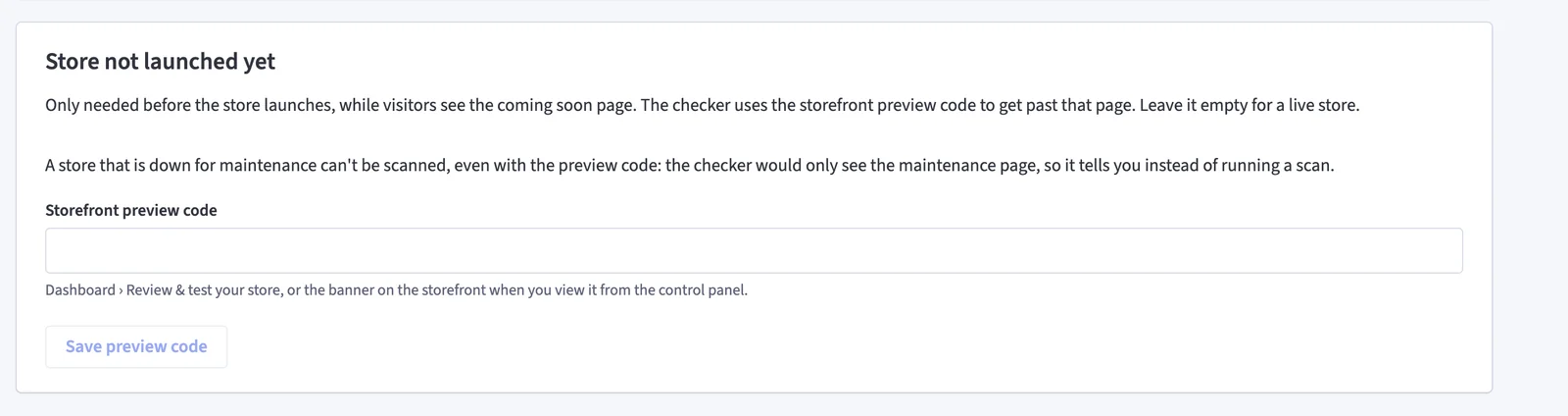
Before a store launches, visitors see a coming soon page instead of the store. The app checks for it before every scan. If it finds it, it doesn't start the scan, nothing is used from your allowance, and it asks for your preview code. To scan your store before launch:
- In your control panel, copy the storefront preview code from Dashboard › Review & test your store. It's also on the banner on your storefront when you view it from the control panel.
- In the app, open Settings and paste it in Store not launched yet › Storefront preview code.
- Click Save preview code, then run your scan again.
The code is stored encrypted and never shown again: once it's saved, the field shows dots. To replace it, enter a new one. To remove it, click Remove saved preview code. Once your store launches, you don't need it.
reCAPTCHA. If your coming soon page asks for a reCAPTCHA, the checker can't enter the code. In your control panel, go to Settings › Security & privacy and turn off Enable reCAPTCHA on a storefront pre-launch login page while you scan, or launch the store. The app's message links straight to that page.
Maintenance mode. A store that is down for maintenance can't be scanned, even with the preview code: visitors, and the checker, only see the maintenance page. The app tells you instead of running a scan, and nothing is used from your allowance. Take the store out of maintenance mode, then scan again.
Plans, trial and billing
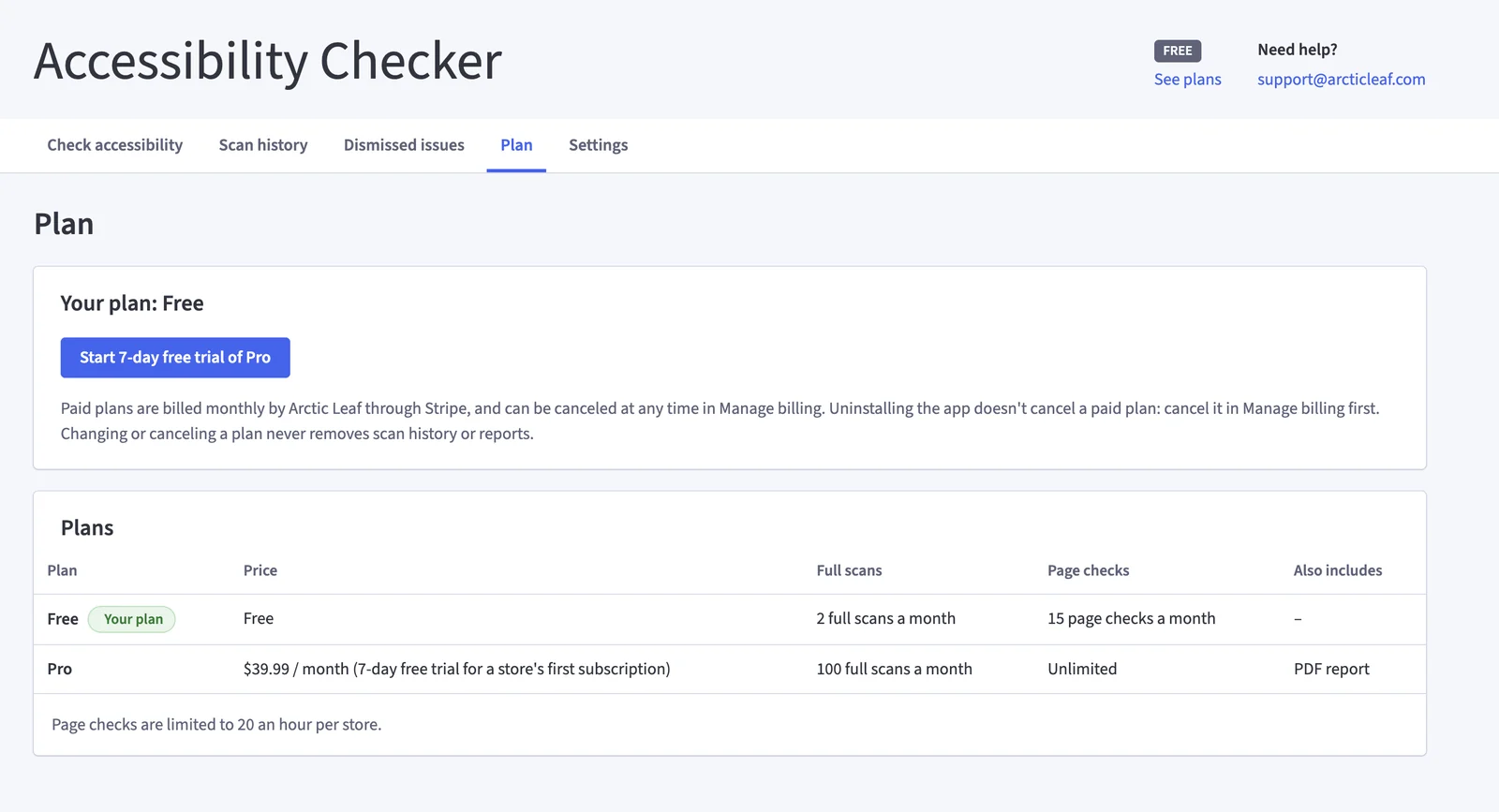
| Free | Pro | |
|---|---|---|
| Price | Free | $39.99 / month, after a 7-day free trial for a store's first subscription |
| Full scans | 2 a month | 100 a month (up to 10 in any 24 hours) |
| Page checks | 15 a month | Unlimited (up to 20 an hour) |
| Results, comparison, score, CSVs and full report | Yes | Yes |
| PDF report | No | Yes |
- Allowances are per store, shared by all its storefronts, and reset on the 1st of each month at midnight US Eastern time.
- Page checks are limited to 20 an hour per store on every plan.
- A scan that is refused, doesn't finish, checks no pages, or is stopped doesn't count.
- The Plan tab shows how many you've used this month.
Start the free trial
- Open Plan and click Start 7-day free trial of Pro.
- Stripe Checkout opens in the full browser window. Payment pages can't be shown inside the control panel, so this is expected. Enter your card and confirm.
- Stripe returns you to the app. The header shows "Pro trial ends" and the date.
You aren't charged during the trial. After it, $39.99 is charged each month unless you cancel in Manage billing before the trial ends. The trial is for a store's first subscription only. If your store has had Pro before, the button says Upgrade to Pro and billing starts right away.
Manage billing or cancel
Pro is billed monthly by Arctic Leaf through Stripe. On the Plan tab, click Manage billing (or Manage subscription in the header) to open Stripe's customer portal. There you can update your card, see invoices, or cancel.
When you cancel, you keep Pro until the end of the period you've paid for, or the end of the trial. The header shows "Cancels" and the date. After that the store moves to the Free plan. Changing or canceling a plan never removes scan history or reports.
If a payment fails, the Plan tab says so. Stripe tries again; update your card in Manage billing to keep Pro.
Uninstall
Uninstalling doesn't cancel Pro. If you're on Pro, cancel it first: open Plan, click Manage billing and cancel in Stripe. Uninstalling on its own leaves the subscription running.
- If you're on Pro, cancel it in Manage billing.
- In your control panel, go to Apps › My Apps.
- Find Accessibility Checker and click Uninstall.
The app never changes your store and adds nothing to your storefront, so there is nothing to clean up. Uninstalling ends the app's access to your store.
- Deleted when you uninstall: the app's access to your store, its list of your store's users, and your settings, including the WCAG target, page lists and saved preview code.
- Kept on our side: your scan history and reports, and your dismissed issues, so they're there if you install the app again. They hold what the checker saw on your public storefront, not customer data. To have them deleted, email support@arcticleaf.com.
When a user is removed from your store, they lose access to the app.
Troubleshooting
- "Your session has ended"
- For your security, the app's session lasts a day. Open the app again from Apps › My Apps. Refreshing the page won't work.
- "No access"
- The app isn't installed on the store any more, or your user was removed from it. Ask the store owner, or install the app again.
- "This store hasn't launched yet" or a message about reCAPTCHA
- See Stores not launched yet. No scan was started and nothing was used.
- "This storefront is down for maintenance"
- Take the store out of maintenance mode, then scan again. No scan was started and nothing was used.
- "This month's full scans are used up" or "Usage limit reached"
- Allowances reset on the 1st of each month. Page checks may still work. For more, see Plans, trial and billing.
- "Enter a page on …" when checking a page
- The page must be on your store's storefront. Paste a link from your storefront, or a path such as /shipping-returns/, or pick a page with Or find a page.
- A scan says it's waiting
- All scanners are busy with other stores' checks, or another scan for your store goes first. It starts on its own. You can leave the page.
- "This full scan didn't finish" or "No pages were checked"
- Click Scan again (or Check again). It doesn't count toward your allowance. If it keeps happening, email us.
- An issue has no control-panel link, or the link opens the wrong storefront
- The app only links when it knows what kind of page it is. Use the page link to find it, then open it in your control panel. On a store with several storefronts, pick the storefront in Page Builder or Web Pages if it opens on another one.
- Stripe opened outside the control panel
- That's expected: payment pages can't load inside the control panel. When you're done, Stripe returns you to the app.
- A result looks clean, but a shopper reported a problem
- Automated checks don't find everything. Test the page with a keyboard and a screen reader, and email us if you think the checker missed something.
Get help
Email support@arcticleaf.com. Include your store address, which scan or page you were looking at, and what you were doing. It helps us answer faster.
Arctic Leaf's help site is at help.arcticleaf.com. See also our privacy policy and terms.